Tuesday, 4 June 2013

Lesson 4 - Menu Manager in Joomla

Menu Manager in Joomla

Using menu manager we can edit the main menu and we can also add new menu. In this article I am describing how to edit main menu and add menu item in it.

Following are the steps:-

Select the menu manager from control panel


Figure 1

Here it is showing the main menu. Click on the main menu it will show its menu item


Lesson 3 - Article Manager in Joomla

Article Manager in Joomla

Article in joomla is web pages where we show our content. Following are the steps to create joomla article:-

Select article manager from control panel


Figure 1

These are some article showing in the list which is already created.


Figure 2

Click on the add button which is showing on the top at left.
Then add page title, its category and content. You can also add metadata information for the SEO perspective. After that click on save button and close it.


Monday, 3 June 2013

Lesson 2 - Category Manager in Joomla

Category in Joomla

In joomla categories behaves like a folder. As we create a folder and save our files and another folder in it. Similarly we create category in joomla which contains web page(article) and sub categories too.
To work with category we have to work with the category manager which provides facility to add, edit and delete the category.

Steps to create the category in joomla
     
      1.    Open the administrator and login it.


Figure 1

     2.       Click on the Category Manager. We can also select category manager from the menu Content


Figure 2

Friday, 24 May 2013

Lesson -1 Introduction and Installation of Joomla

Joomla Introduction and Installation

Joomla is an open source Content Management System(CMS). Joomla is written in PHP and Is compatible with MySQL and MS SQL Server.

Installation of Joomla on WAMP Server on Localhost

I divided the installation of joomla in following steps. This tutorial is helpful to install joomla on WAMP Server on localhost:-

Step 1:-

Download the code for joomla by clicking on the following link:-

After downloading extract the files

Step 2:-

Then go to the C->WAMP->www and create a folder and give it name joomla( this name can be anything)


Figure 1

Step 3:-

Then open the folder where you extract your joomla code and paste it in this folder (which you created in www folder)

Step 4:-

Now start the wamp server and open the phpmyadmin and create the database where joomla stored the data. I am creating the database and give it name TechAltum


Figure 2

Sunday, 19 May 2013

Lesson 3- if-else statement in PHP


Use of If-else Statement

In the earlier example we calculated the hra and gross salary.

Suppose there is a policy of company that if salary is greater than 10000 then hra will be 5% of salary but if salary is less than 10000 then hra will be 10%
In this situation we will use if-else statement.

Syntax of if-else:-

If (condition)
{
          Logic when condition true
}
Else
{
          Logic when condition false
}

Friday, 17 May 2013

Practice Paper 1 - Basic programming example


Some basic Programming example in PHP

After variable, let’s try some basic program in PHP.

Program 1:- Sum of Two numbers

Following is the code:-
<?php
$fnum=10;
$snum=40;
$res=$fnum+$snum;
echo " The sum =$res";
?>

Lesson 2- Variable in PHP


Variable in PHP

In programming variable is a storage location where data will be stored. In php we declared variable using $(Dollar) symbol.

For Example:-

Declaration of variable:-

$var_data

Note:-var_data is a variable name. it can be anything.

Assign value to the variable:-

$var_data=”isha Malhotra”;

You can also declare and assign value in single line.

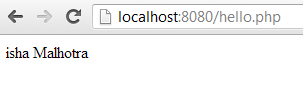
Basic program to work with variable and learn more about echo
<?php
$data;
$data="isha Malhotra";
echo "$data";
?>

When I execute this program it will show the following output:-


Figure 1